How to enable the web service (WS) in SES Hospedajes
If you registered your property in SES Hospedajes but didn't tick the 'Envío de comunicaciones por servicio web' (send communications via web service) box, your reports can't be submitted automatically. The good news: you don't need to register again. You can enable it in a few minutes by editing your existing registration. Here's how.
Enable the web service step by step
You'll need your digital certificate (or Cl@ve) to access the Ministry of the Interior's electronic office and sign the change with Autofirma.
- 1
Sign in to the electronic office
Access the SES Hospedajes portal with your digital certificate or Cl@ve and click 'Acceso al registro de establecimientos y entidades' (access establishment registration).

- 2
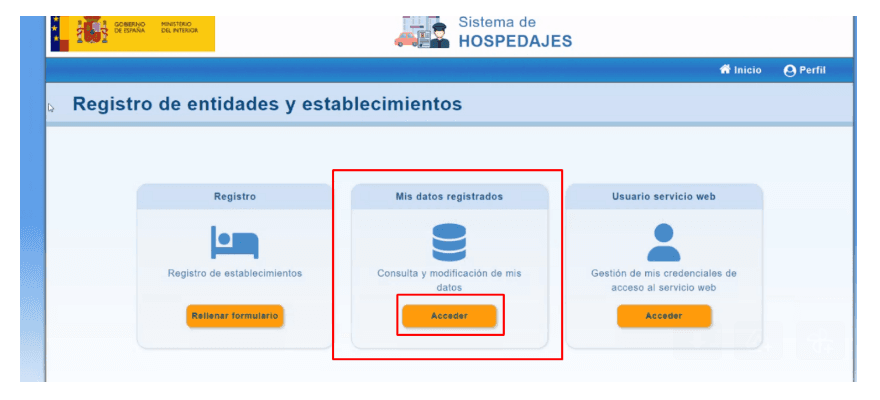
Open 'Mis datos registrados'
On the main screen you'll see three cards. Click 'Acceder' on 'Mis datos registrados' to edit the settings of a property that is already registered. You don't need to create a new one.
- 3
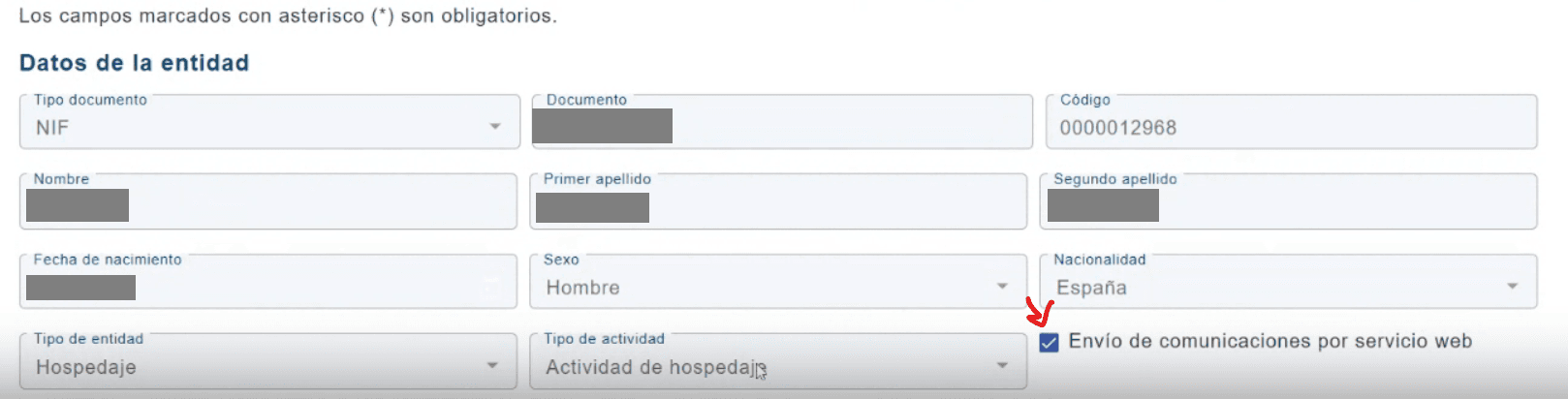
Tick the web service box
In the entity details, enable the 'Envío de comunicaciones por servicio web' checkbox and save your changes. That's the option that turns on automatic report submission.
- 4
Sign with Autofirma
As in the initial registration, the change is signed with Autofirma. Make sure it's installed and up to date.
- 5
Receive your WS credentials
Once the change is registered, the Ministry emails you the web service username and password, along with your landlord code and establishment codes.
View and reset the credentials
When the web service is active, the section to manage the access credentials appears.
- 1
Find the credentials management
After signing the change, the home page shows the option to manage the web service access credentials.
- 2
Note your WS username
The username is usually your registration NIF or CIF followed by the letters 'WS' (for example, 12345678AWS).
- 3
Generate or change the password
From there you can view, change or regenerate the web service password. It must be at least 8 characters long and include an uppercase letter, a lowercase letter and a number.
- 4
Set them up in your registration app
Enter the WS username and password in Autoregistro (or your system) so it submits the reports for you automatically.
Watch out for this
- The web service password is NOT the same one you use to sign in to the SES Hospedajes website with your certificate. They are two separate credentials: the portal one (for you) and the WS one (for apps).
- If the email with the WS credentials doesn't arrive, untick and tick the web service box again to force the Ministry to resend it.
- The web service is enabled per property. If you have several, check the box is ticked on each one.
Frequently asked questions
Do I have to register the property again?
No. You just edit your existing registration in 'Mis datos registrados', tick the web service box and sign the change. Your registration is kept.
What is the web service username?
It's usually your registration NIF or CIF followed by the letters 'WS'. You receive it by email along with the password once the service is enabled.
Is the web service password the same as my certificate's?
No. The WS password is different from the one you use to sign in to the SES Hospedajes portal. The WS one is only used by apps to submit the reports.
The credentials email doesn't arrive, what do I do?
Untick 'Envío de comunicaciones por servicio web', save, and tick it again. That forces the email with the WS username and password to be resent.
How long until it's working?
As soon as you sign the change with Autofirma and receive the WS credentials, you can set them up in Autoregistro and start submitting reports automatically.
Do I need the web service to use Autoregistro?
Yes. Autoregistro submits reports to SES Hospedajes through the web service, so your property must have the box ticked and valid WS credentials.
Automate your guest reports
With the web service enabled, Autoregistro submits the reports to SES Hospedajes for you. €1/month per property, 3 weeks free and no card.
Try it free